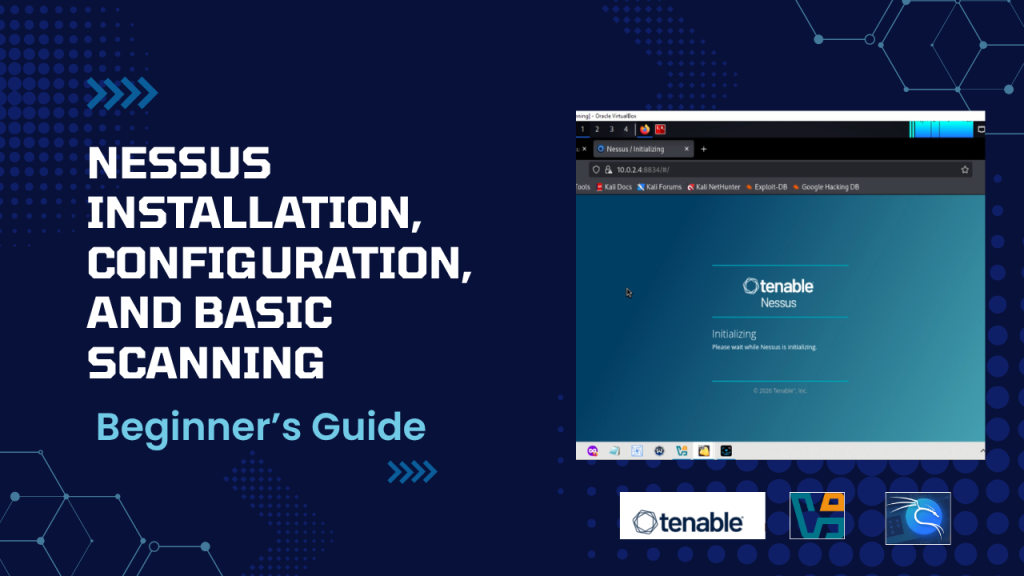
How to Install and Use Nessus (Step-by-Step Beginner Guide)

Nessus Installation Configuration And Basic Scanning Beginners Guide

Introduction

If you’re getting into cybersecurity, learning how to scan for vulnerabilities isn’t optional—it’s essential.

One of the most widely used tools for this is Nessus. It’s powerful, reliable, and surprisingly approachable, even if you’re just starting out.

In this guide, I’ll walk you through:

  • Installing Nessus
  • Setting it up the right way
  • Running your first scan

Let’s get into it.

What is Nessus?

Nessus is a vulnerability scanner developed by Tenable. In simple terms, it checks systems for security issues like:

  • Open ports
  • Misconfigurations
  • Missing updates
  • Known vulnerabilities

Think of it as a diagnostic tool—it tells you what’s wrong before someone else finds it.

Step 1: Installing Nessus

Download Nessus

Head over to Tenable’s website and download Nessus Essentials. It’s free and perfect for beginners (limited to 16 IP addresses).

Choose the version that matches your system:

  • Kali Linux / Ubuntu
  • Windows
  • macOS
Install on Linux (Kali / Ubuntu)
Run:
sudo dpkg -i Nessus-*.deb

If there are dependency issues:

sudo apt-get install -f
Start the Service
sudo systemctl start nessusd

Enable it at startup:

sudo systemctl enable nessusd
Access the Web Interface

Open your browser and go to:

https://localhost:8834

You’ll see a security warning because of the self-signed certificate—this is normal. Go ahead and proceed.

Step 2: Initial Setup

Choose the Version

Select Nessus Essentials.

Enter Activation Code

Register on the Tenable website and get your free activation code. Paste it into the setup.

Create Login Credentials

Set your username and password—this is what you’ll use to access the dashboard.

Let Plugins Install

Nessus will now download and compile its plugins. This can take a bit of time, but it’s important—these plugins are what power the scans.

Just let it finish.

Step 3: Getting Familiar with the Dashboard

Once everything’s ready, you’ll land on the main dashboard.

You’ll mainly use:

  • My Scans → where your scans live
  • Policies → scan configurations
  • Settings → tool preferences

For now, keep it simple. Start with a Basic Network Scan.

Step 4: Running Your First Scan

Create a Scan

Click:

New Scan → Basic Network Scan

Set It Up

Fill in:

  • Name: First Scan
  • Targets:
    • Your machine → 127.0.0.1
    • Or another device → 192.168.1.x
Launch

Click:

Save → Launch

Wait for Results

Scan time depends on what you’re scanning and how deep the scan goes. Usually, it takes anywhere from 5 to 20 minutes.

Step 5: Understanding the Results

Once the scan is done, Nessus organizes findings by severity:

  • 🔴 Critical
  • 🟠 High
  • 🟡 Medium
  • 🔵 Low
  • ⚪ Informational
What You’ll See

Typical results include:

  • Open ports (like 22, 80, 443)
  • Weak configurations
  • Missing patches
  • Default credentials
Where to Focus

Don’t try to fix everything at once.

Start with:

  1. Critical
  2. High

That’s where the real risk is.

Step 6: Best Practices (Don’t Skip This)

This is where most beginners go wrong.

Do:
  • Scan only systems you own or have permission to test
  • Keep plugins updated
  • Start small and build up
Don’t:
  • Scan random public IPs
  • Run aggressive scans on live production systems
  • Ignore serious vulnerabilities

Step 7: What Comes Next?

Running a scan is just the first step.

For each issue:

  • Read the description
  • Check the recommended fix
  • Apply it

That’s how you actually improve security.

Where This Helps in Real Life

You can use Nessus for:

  • Home lab testing
  • Learning cybersecurity hands-on
  • Internal network checks
  • Early-stage bug bounty practice
Final Thoughts

Nessus is one of the easiest ways to step into real-world cybersecurity.

You don’t need to overthink it:

  • Install it
  • Run scans
  • Learn from what you find

That’s exactly how most people get started.

Leave a Comment

Your email address will not be published. Required fields are marked *